Install Portainer CE with Docker on Linux

These installation instructions are for Portainer Community Edition (CE). For Portainer Business Edition (BE) refer to the BE install documentation.

Introduction

Portainer consists of two elements, the Portainer Server, and the Portainer Agent. Both elements run as lightweight Docker containers on a Docker engine. This document will help you install the Portainer Server container on your Linux environment. To add a new Linux environment to an existing Portainer Server installation, please refer to the Portainer Agent installation instructions.

To get started, you will need:

  • The latest supported version of Docker installed and working. We recommend following the official installation instructions for Docker – in particular, we advise against installing Docker via snap on Ubuntu distributions as you may run into compatibility issues.
  • sudo access on the machine that will host your Portainer Server instance
  • By default, Portainer Server will expose the UI over port 9443 and expose a TCP tunnel server over port 8000. The latter is optional and is only required if you plan to use the Edge compute features with Edge agents.

The installation instructions also make the following assumptions about your environment:

  • Your environment meets our requirements. While Portainer may work with other configurations, it may require configuration changes or have limited functionality.
  • You are accessing Docker via Unix sockets. Alternatively, you can also connect via TCP.
  • SELinux is disabled on the machine running Docker. If you require SELinux, you will need to pass the --privileged flag to Docker when deploying Portainer.
  • Docker is running as root. Portainer with rootless Docker has some limitations, and requires additional configuration.

Deployment

You can choose to deploy Portainer using docker run or via Docker Compose.docker runDocker Compose

To install using Docker Compose, download the compose file using the following curl command:Copy

curl -L https://downloads.portainer.io/ce-lts/portainer-compose.yaml -o portainer-compose.yaml

Alternatively, create a portainer-compose.yaml file with the following contents:Copy

services:
  portainer:
    container_name: portainer
    image: portainer/portainer-ce:lts
    restart: always
    volumes:
      - /var/run/docker.sock:/var/run/docker.sock
      - portainer_data:/data
    ports:
      - 9443:9443
      - 8000:8000  # Remove if you do not intend to use Edge Agents

volumes:
  portainer_data:
    name: portainer_data

networks:
  default:
    name: portainer_network

Once you have created or downloaded the compose file, you can deploy it with the following command:Copy

docker compose -f portainer-compose.yaml up -d

Docker Compose will create the necessary resources and deploy Portainer. You can check to see whether the Portainer Server container has started by running docker ps:Copy

root@server:~# docker ps
CONTAINER ID   IMAGE                        COMMAND        CREATED         STATUS         PORTS                                                                                                NAMES
7963585688a9   portainer/portainer-ce:lts   "/portainer"   8 seconds ago   Up 8 seconds   0.0.0.0:8000->8000/tcp, [::]:8000->8000/tcp, 0.0.0.0:9443->9443/tcp, [::]:9443->9443/tcp, 9000/tcp   portainer

Logging In

Now that the installation is complete, you can log into your Portainer Server instance by opening a web browser and going to:Copy

https://localhost:9443

Replace localhost with the relevant IP address or FQDN if needed, and adjust the port if you changed it earlier.

You will be presented with the initial setup page for Portainer Server.Initial setup

Installatie Docker


To get started with Docker Engine on Ubuntu, make sure you meet the prerequisites, and then follow the installation steps.

https://docs.docker.com/engine/install/ubuntu/

Prerequisites

Firewall limitations

Warning

Before you install Docker, make sure you consider the following security implications and firewall incompatibilities.

  • If you use ufw or firewalld to manage firewall settings, be aware that when you expose container ports using Docker, these ports bypass your firewall rules. For more information, refer to Docker and ufw.
  • Docker is only compatible with iptables-nft and iptables-legacy. Firewall rules created with nft are not supported on a system with Docker installed. Make sure that any firewall rulesets you use are created with iptablesor ip6tables, and that you add them to the DOCKER-USER chain, see Packet filtering and firewalls.

OS requirements

To install Docker Engine, you need the 64-bit version of one of these Ubuntu versions:

  • Ubuntu Questing 25.10
  • Ubuntu Plucky 25.04
  • Ubuntu Noble 24.04 (LTS)
  • Ubuntu Jammy 22.04 (LTS)

Docker Engine for Ubuntu is compatible with x86_64 (or amd64), armhf, arm64, s390x, and ppc64le (ppc64el) architectures.

Note

Installation on Ubuntu derivative distributions, such as Linux Mint, is not officially supported (though it may work).

Uninstall old versions

Before you can install Docker Engine, you need to uninstall any conflicting packages.

Your Linux distribution may provide unofficial Docker packages, which may conflict with the official packages provided by Docker. You must uninstall these packages before you install the official version of Docker Engine.

The unofficial packages to uninstall are:

  • docker.io
  • docker-compose
  • docker-compose-v2
  • docker-doc
  • podman-docker

Moreover, Docker Engine depends on containerd and runc. Docker Engine bundles these dependencies as one bundle: containerd.io. If you have installed the containerd or runc previously, uninstall them to avoid conflicts with the versions bundled with Docker Engine.

Run the following command to uninstall all conflicting packages:

 sudo apt remove $(dpkg --get-selections docker.io docker-compose docker-compose-v2 docker-doc podman-docker containerd runc | cut -f1)

apt might report that you have none of these packages installed.

Images, containers, volumes, and networks stored in /var/lib/docker/ aren’t automatically removed when you uninstall Docker. If you want to start with a clean installation, and prefer to clean up any existing data, read the uninstall Docker Engine section.

Installation methods

You can install Docker Engine in different ways, depending on your needs:

Apache License, Version 2.0. See LICENSE for the full license.

Install using the apt repository

Before you install Docker Engine for the first time on a new host machine, you need to set up the Docker apt repository. Afterward, you can install and update Docker from the repository.

  1. Set up Docker’s apt repository.# Add Docker's official GPG key: sudo apt update sudo apt install ca-certificates curl sudo install -m 0755 -d /etc/apt/keyrings sudo curl -fsSL https://download.docker.com/linux/ubuntu/gpg -o /etc/apt/keyrings/docker.asc sudo chmod a+r /etc/apt/keyrings/docker.asc # Add the repository to Apt sources: sudo tee /etc/apt/sources.list.d/docker.sources <<EOF Types: deb URIs: https://download.docker.com/linux/ubuntu Suites: $(. /etc/os-release && echo "${UBUNTU_CODENAME:-$VERSION_CODENAME}") Components: stable Signed-By: /etc/apt/keyrings/docker.asc EOF sudo apt update
  2. Install the Docker packages.Latest Specific versionTo install the latest version, run: sudo apt install docker-ce docker-ce-cli containerd.io docker-buildx-plugin docker-compose-plugin NoteThe Docker service starts automatically after installation. To verify that Docker is running, use: sudo systemctl status docker Some systems may have this behavior disabled and will require a manual start: sudo systemctl start docker

Jaar rommelen met hardlopen

Naar mijn blessure. Heb ik eigenlijk niet meer fijn gelopen. Naar een tijd naar de fysio gaan en naar het kopen van nieuwe hardloopschoenen. Gaat het weer een beter. Maar omdat er dit daar toch niet veel runs komen. Heb ik besloten om dit jaar, mij te concentreren om weer in mijn oude vorm te komen met hardlopen. Omdat het mij niet alleen gelukt, ga ik dit seizoen samen met Gert-Jan Wassink mijn hardloop coach van Running Movement. Aan mijn hardlopen werken, zodat we volgend seizoen weer lekken kunnen knallen.

We gaan beginnen op 1maart 2020 tot 31 augustus.

In deze tijd gaan we ons focussen op techniek, belastbaarheid met een paar mooie doelen.

een 15kilometer run, 21kilometer run en als doel een marathon op snelheid.

De PT

Dax ons nieuwste lid van de Familie

Na een zoektocht kwam mijn vrouw op internet een mooi bericht tegen

Naar wat heen en weer berichten kregen zaterdag het verlossende woord. Dat er een mooie Zwarte reu voor ons was. Nu is het afwachten tot 7 julli dat onze hond ons gezin mag verrijken.

Strong Viking Mud Edition Fürstenau 19km

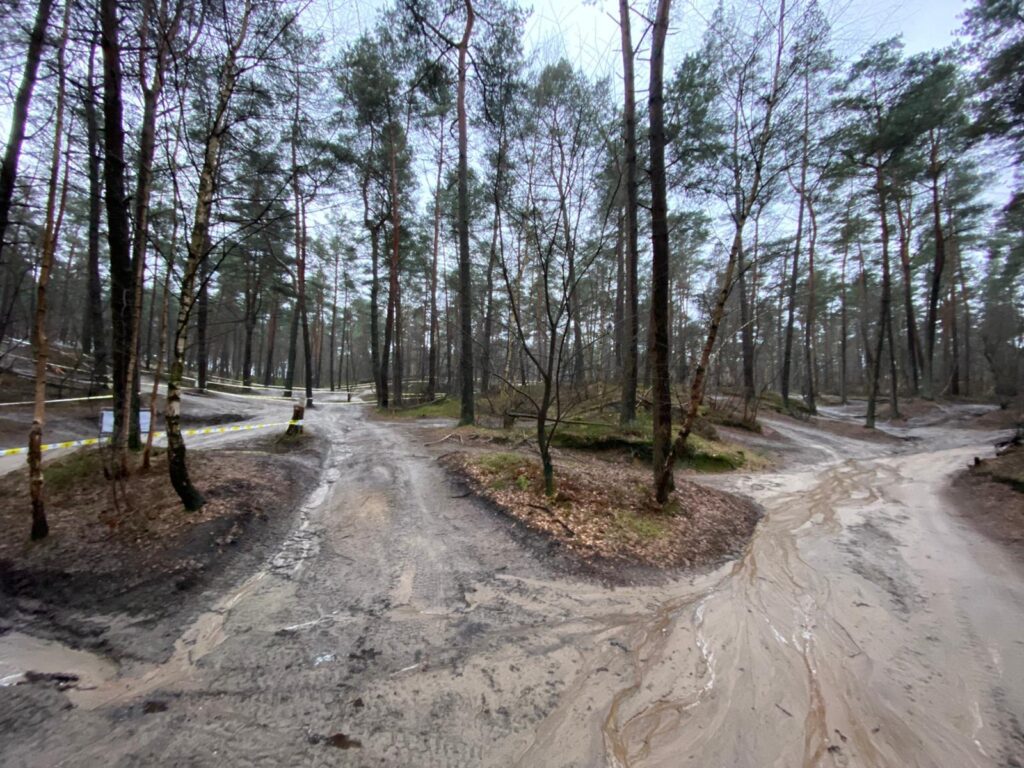
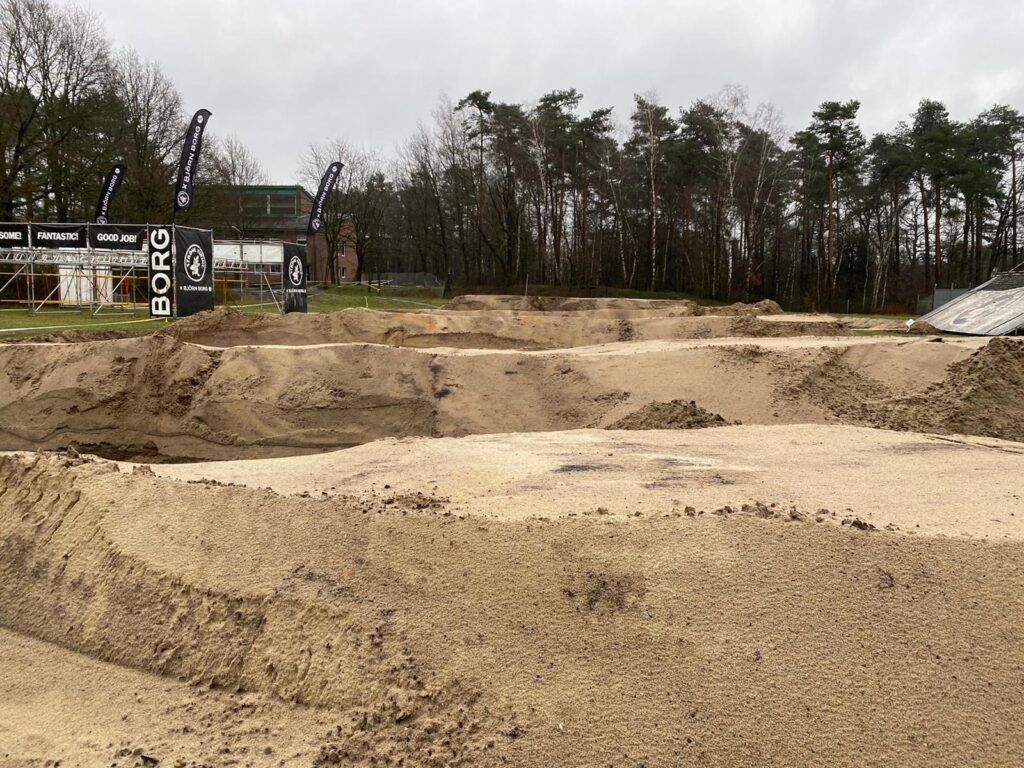
De winter is voorbij gevlogen. In de winter lekker getraind en aardig wat sterker geworden. Op 7 maart mochten we weer aan de bak, de voorpret foto’s beloofde veel mudder plezier.

Fürstenau ligt niet dicht bij de deur, dus we waren vroeg op pad. Met Lieuwe , Willem en Ik. Naar ruim ander half uur rijden kwamen we aan

Naar dat we hadden rond gelopen

Midwintermarathon de Decathlon Mini-Marathon editie 2020

Op 2 Februari 2020 was het weer zo ver, om de Midwinter Marathon te lopen. Mijn benen waren nog niet fit, daarom gekozen om de 10em te lopen. Wat het weer super gezellig en het was een mooi parcour.

Centraal Beheer Night Run 31 Januari 2020

Samen met Keano de Night Run gelopen. Door een foutje van ons konden we vooraan starten. Daar waren we heel blij me want we konden overal zo door lopen. Het was een super race en Keano heeft super gelopen 8,5km/h